Prompt Tools Guide
By None None
Published: December 9, 2025
20 min read
Tags: Prompt Tools, Prompt Engineering, AI Prompts, Text-to-Image, Image-to-Image, Image-to-Video, AI Video Generation, AI Compare Hub, Tutorial, User Guide, Creative Workflow, Prompt Templates
Category: User Guide
Master the art of prompt crafting with AI Compare Hub's comprehensive prompt tools. These tools help you create detailed, effective prompts that produce stunning AI-generated images and videos.
AI Compare Hub Prompt Tool Overview
AI Compare Hub offers two categories of prompt tools designed to help you craft effective prompts for AI image and video generation:
Below is an output example of Scene Generative Fusion.
AI Compare Hub's Prompt Tools provide everything you need to craft effective prompts for AI image and video generation. Whether you prefer the speed of Quick Prompt Tools with themed templates, or the detailed control of Text-to-Image Custom Tools, these tools help you create professional-quality prompts without the guesswork.
Remember that all generated prompts are fully editable, and the Auto Generation feature is always available when you need a creative starting point. As you explore these tools, you'll develop your own prompting style and discover which approaches work best for your creative vision.
Continue to the next guide: Share & Earn Guide to learn how to share your creations and earn credits.
Frequently Asked Questions
What is the Prompt Tools Guide in AI Compare Hub?
The Prompt Tools Guide explains how to use AI Compare Hub’s prompt tools to create detailed, effective prompts for AI-generated images and videos, including fast template-based tools and advanced custom prompt builders.
What are the two categories of prompt tools in AI Compare Hub?
AI Compare Hub offers (1) Quick Prompt Tools for fast, template-based prompting and (2) Text-to-Image Custom Tools for advanced, step-by-step prompt crafting for specific use cases.
Which Quick Prompt Tools are available?
Quick Prompt Tools include: Text-to-Image Prompt Tool, Image-to-Image Prompt Tool, and Image-to-Video Prompt Tool—each designed for common generation workflows.
How do I access Quick Prompt Tools from the Generation Workspace?
In the Create AI Art generation interface, open the prompt section and click the “Open Quick Prompt Tool” button. The tool opens as a modal so you can build prompts without leaving the page.
How does the Text-to-Image Quick Prompt Tool work?
Select a theme template, choose a main subject and main setting, then generate a finished prompt. You can copy it or open Text-to-Image in a new tab with the prompt pre-loaded.
What is Auto Generation in the prompt tools?
Auto Generation randomly selects prompt elements (and optionally a theme) to produce a complete prompt instantly. It’s a fast way to explore ideas and jump straight into generating images or videos.
Can I edit the generated prompt before creating images or videos?
Yes. The generated prompt section is fully editable, so you can fine-tune wording, add details, or remove constraints before copying or generating.
What prompt types are supported in the Image-to-Image Quick Prompt Tool?
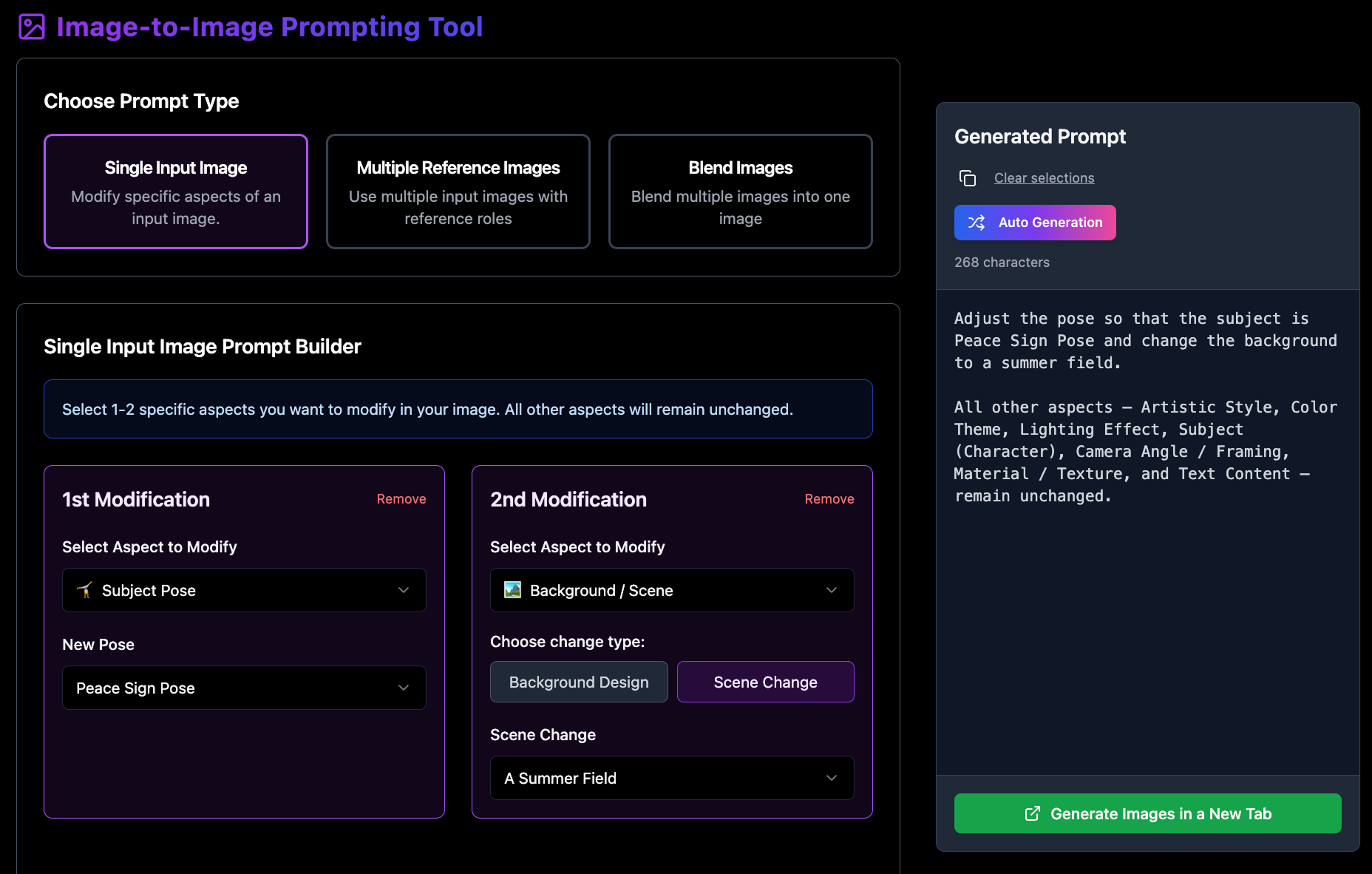
It supports three prompt types: Single Input Image (modify one image), Multiple Reference Images (use several images with roles), and Blend Images (combine multiple images into one cohesive result).
What transformation aspects can I change in Single Input Image mode?
You can change aspects like artistic style, color theme, lighting, subject/character, pose, background/scene, camera angle/framing, material/texture, and even add text content.
What’s the difference between upload order reference and reference tags?
Upload order reference uses the first/second/etc. image order for referencing. Reference tags assign explicit roles (like style reference or subject reference), commonly used in workflows such as Runway models.
What blending approaches are available in Blend Images mode?
Blend Images supports Overlay Blending, Seamless Integration, Character Generative Fusion, and Scene Generative Fusion—each optimized for a different kind of combined output.
What do Text-to-Image Custom Tools include?
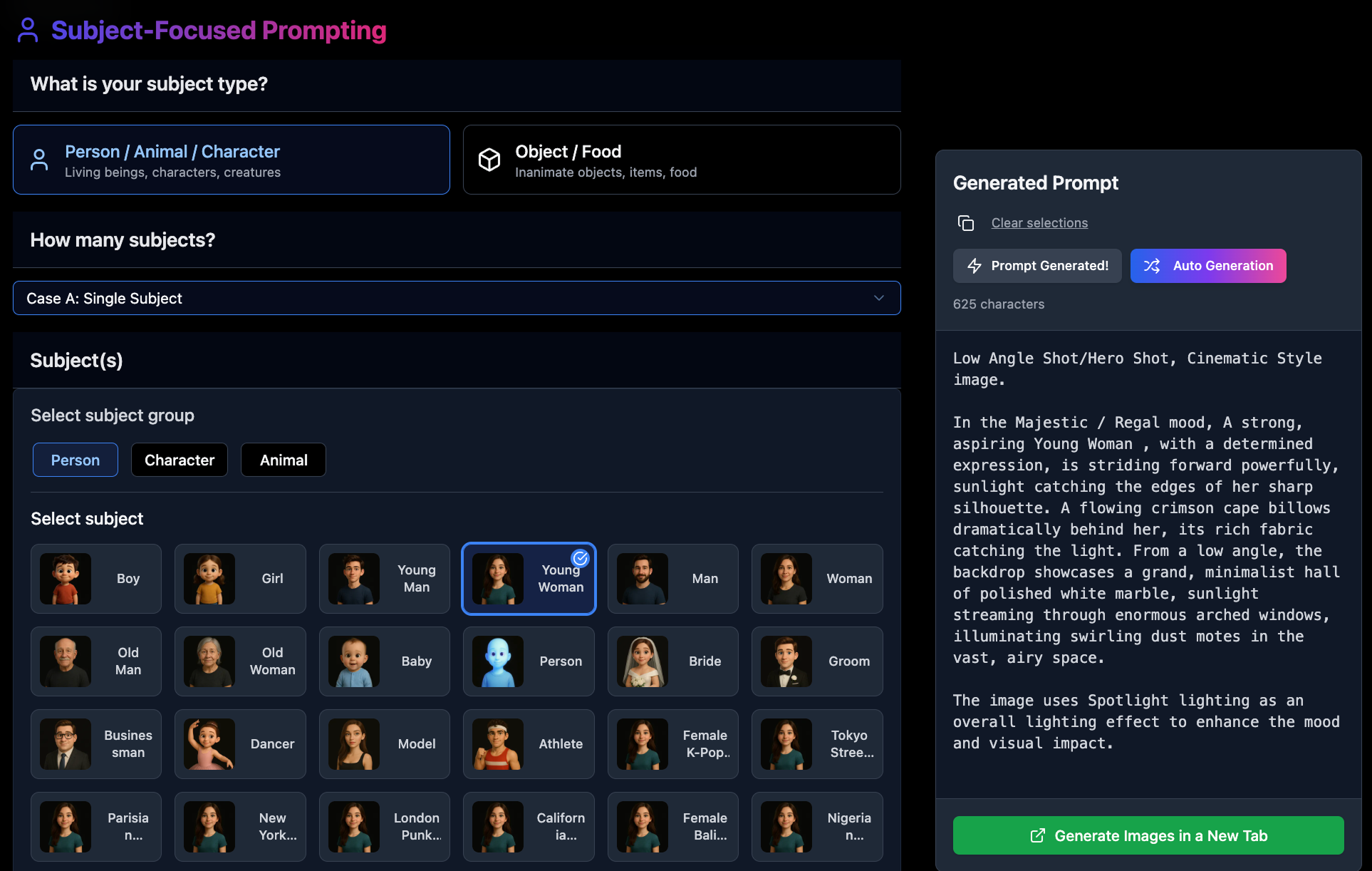
Custom Tools include Subject-Focused Prompting, Scene-Focused Prompting, Design-Focused Prompting, Abstract Prompting, and Inspirational Prompting—built for detailed, step-by-step prompt creation.