AI Image Creation Guide
By None None
Published: December 9, 2025
10 min read
Tags: AI Compare Hub, AI Image Generation, Text-to-Image, Image-to-Image, Prompt Writing, Model Comparison, Quick Prompt Tool, Ask AI, Creative Workflow, Beginner Guide
Category: User Guide
This comprehensive guide covers image generation types available in AI Compare Hub. Learn how to create stunning images from text descriptions and transform existing images using AI models.
Getting Started with Image Generation
The Create AI Art page is divided into two main sections:
- Generation Workspace (top section): Where you configure and execute your generation requests. Select your generation type, choose models, set parameters, and generate your content.
- Generation History (bottom section): A comprehensive view of all your past generations, organized by request. Filter by folder, generation type, or search for specific creations.
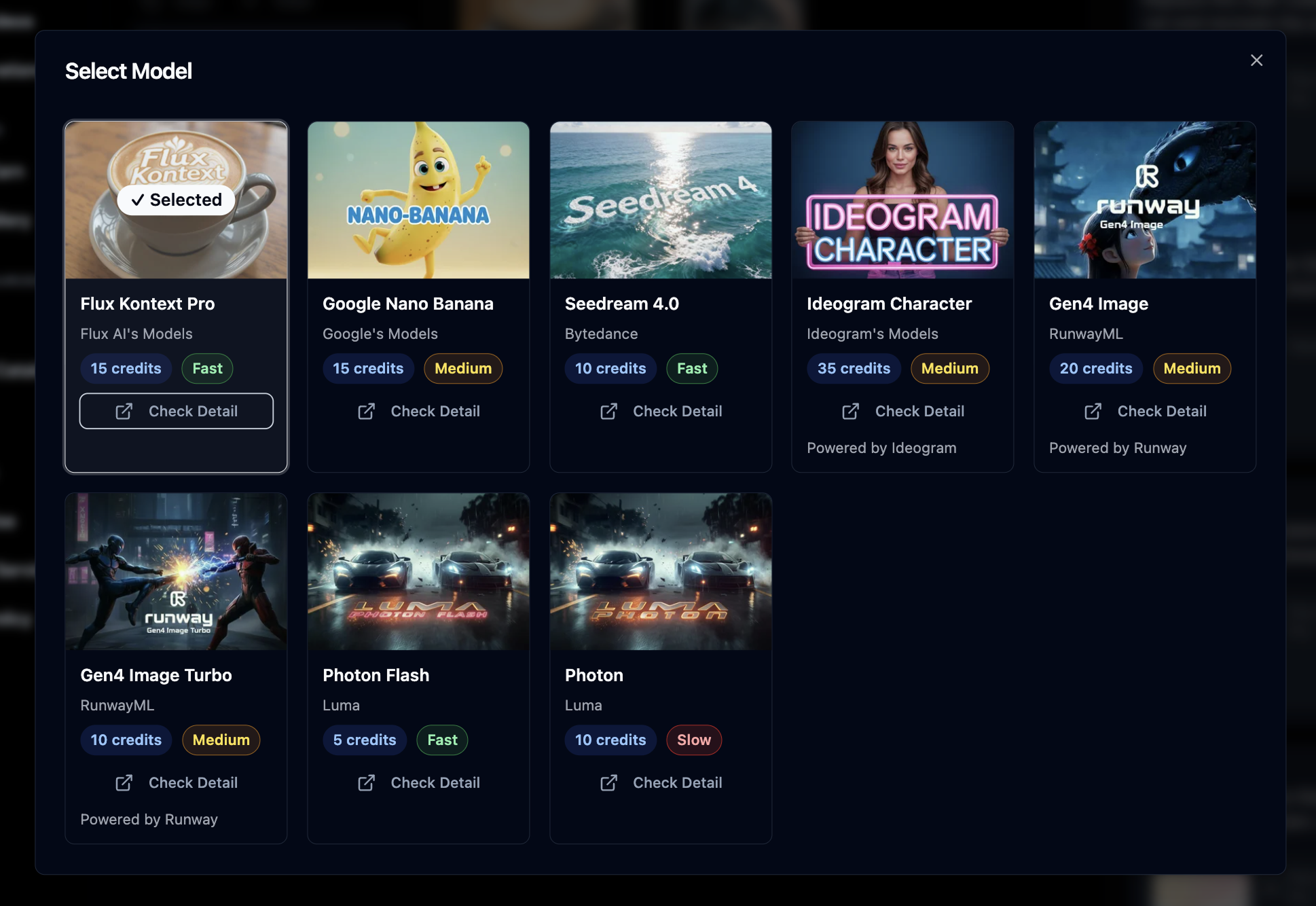
By reviewing results from different models, you can quickly learn which models align best with your creative goals.
Continue to the next guide: Video Creation Guide to learn about video generation, or Prompt Tools Guide to learn advanced prompt crafting techniques.
Frequently Asked Questions
What is this AI Image Creation Guide about?
This guide explains how to generate images in AI Compare Hub using Text-to-Image and Image-to-Image workflows, including model selection, prompts, parameters, and organizing results with folders.
What are the main sections of the Create AI Art page?
The page has two sections: the Generation Workspace (where you configure and run generations) and Generation History (where you review and manage past generations by request).
What is a Working Folder and why do I need to select one?
A Working Folder determines where newly generated images are saved and helps you keep projects organized. It also makes Generation History filter automatically to that folder for easier tracking.
What’s the difference between Text-to-Image and Image-to-Image?
Text-to-Image creates new images from a written prompt. Image-to-Image transforms an existing uploaded image based on your prompt, while keeping other parts of the image consistent.
Can I generate with multiple AI models at the same time?
Yes. In Text-to-Image you can select up to 4 models and generate simultaneously with the same prompt, making it easy to compare styles side-by-side.
How do I write better prompts for image generation?
Be specific and include subject, style, mood, lighting, and composition details. You can also use the Quick Prompt Tool (or Image-to-Image Prompt Tool) to generate a structured prompt automatically.
What does the Ask AI feature do in Image-to-Image?
Ask AI analyzes your uploaded image and generates a transformation prompt for you (typically changing one or two aspects like style, lighting, or subject). It requires a small credit cost and then loads the prompt into the prompt field.
How do aspect ratios and parameters affect results?
Aspect ratio controls the output shape (like 1:1, 16:9, 9:16). Optional parameters (such as seed or image size) influence consistency and output behavior, and may vary by model.
Where can I find my past generated images?
Your past generations are saved in Generation History, organized by request. You can filter by folder, search, or regenerate using the same setup and adjust it for refinements.
How can I earn credits from my generated images?
You can share results to the community gallery using Share & Earn. Shared creations can earn monthly points (mP) that convert into credits at the end of the month.